Log in to your Squarespace account and open the website where you want to add the widget. For demonstration purposes, this guide adds the widget to the website's Home page, but you can follow the same process to add it to any page on your site.
Open the page where you would like the TitleCapture widget to appear. click Edit Site to launch the site editor.

Click Add Block
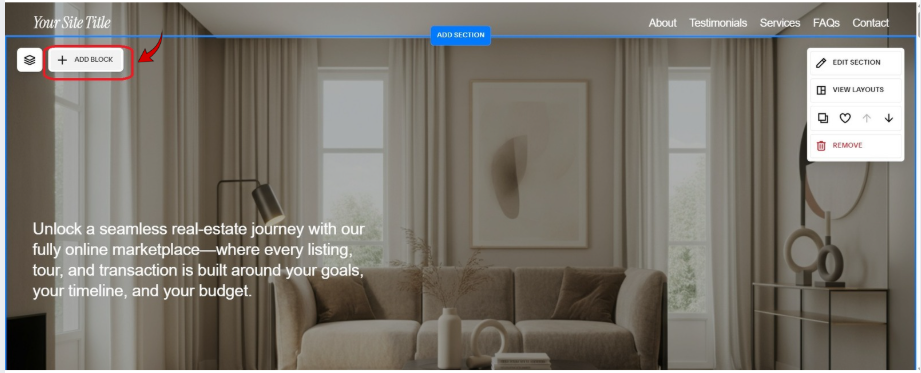
From the block menu, scroll to the Code section and click Code to add a Code Block to the page. This block allows you to embed custom HTML, JavaScript, and third-party widgets such as TitleCapture.

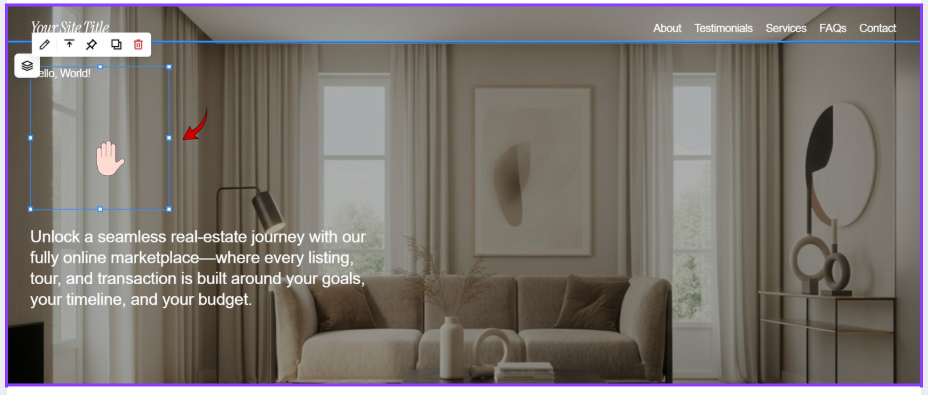
Drag and place the Code Block in the desired location on the page. The widget will appear wherever the Code Block is positioned.
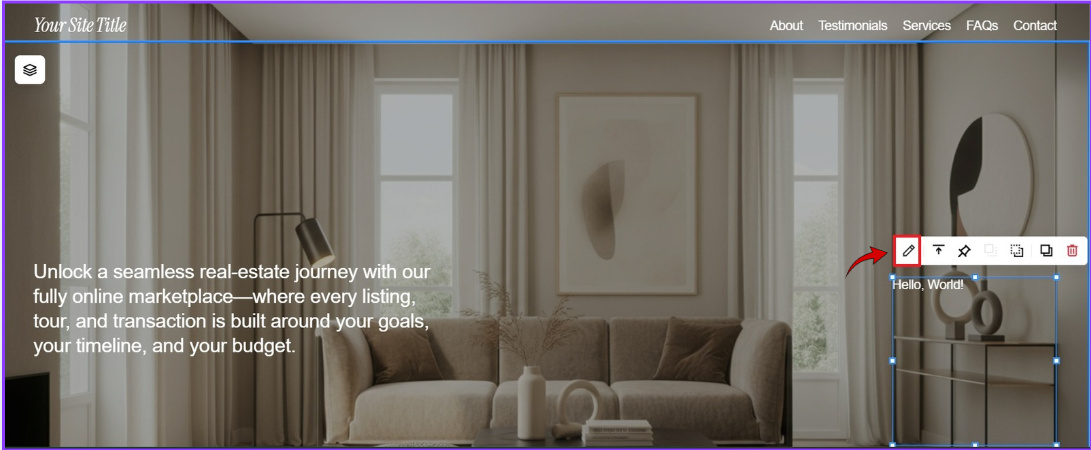
Once the Code Block has been placed on the page, click the Edit icon (pencil icon) on the block toolbar to open the Code Block editor.
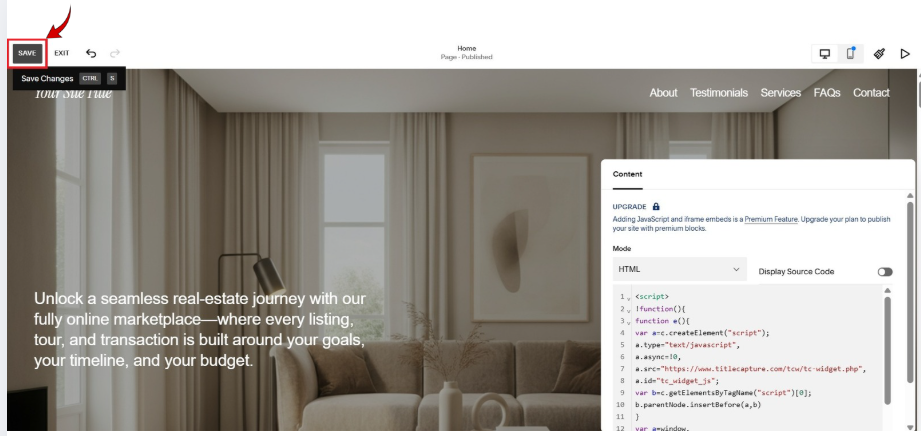
Remove any existing sample code and paste the TitleCapture embed code into the Code Block editor.
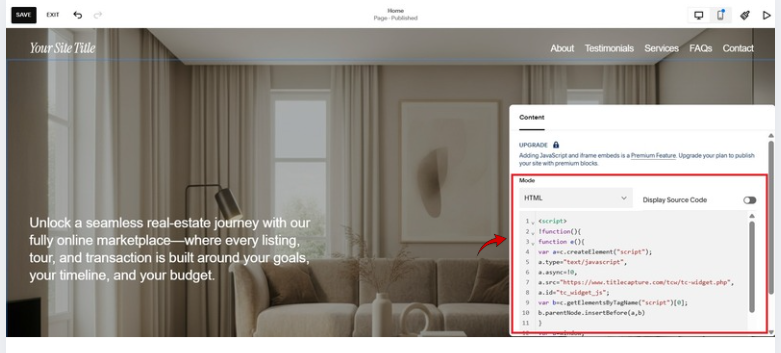
Click on “Save” at the upper left to update your changes.
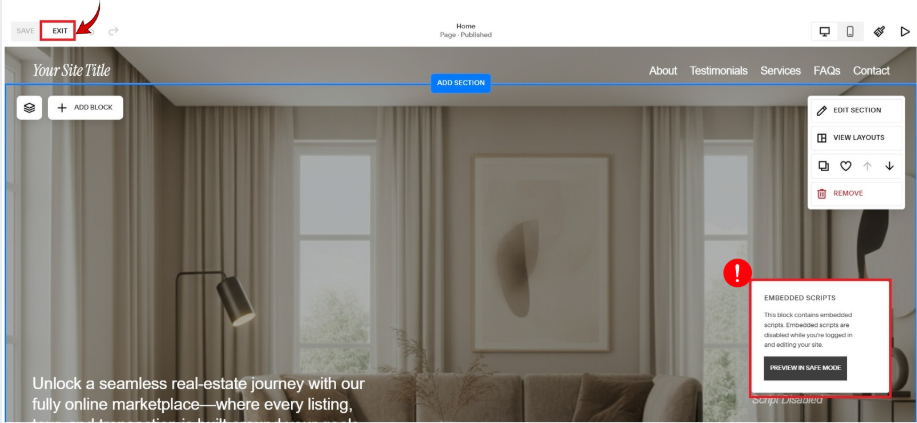
After saving the page, click Exit to leave editing mode. An Embedded Scripts message will appear in place of the TitleCapture widget. This indicates that the Code Block was added successfully. While editing your site, Squarespace does not run embedded scripts, so the widget will not display until the page is viewed outside of the editor.
This guide covers adding the TitleCapture widget to a Squarespace page. Depending on your Squarespace plan and website configuration, publishing requirements and available features may vary. If the widget does not appear on the live page, verify that the embed code was copied correctly and that your site is publicly accessible.
If you have any questions or need additional help, please reach out to us at [email protected]. We’re always happy to assist.
