
You can pin any website to your Mac's Dock so that it opens with one click, just like a regular app. The steps depend on which browser you use. Safari, Chrome, and Edge can create a proper "app-like" shortcut that opens in its own window. Firefox can't do this natively — you'll drag a link instead.
Pick your browser below.
Safari on macOS
1. Open Safari and go to the website — for example, yourtitlecompany.titlecapture.com.
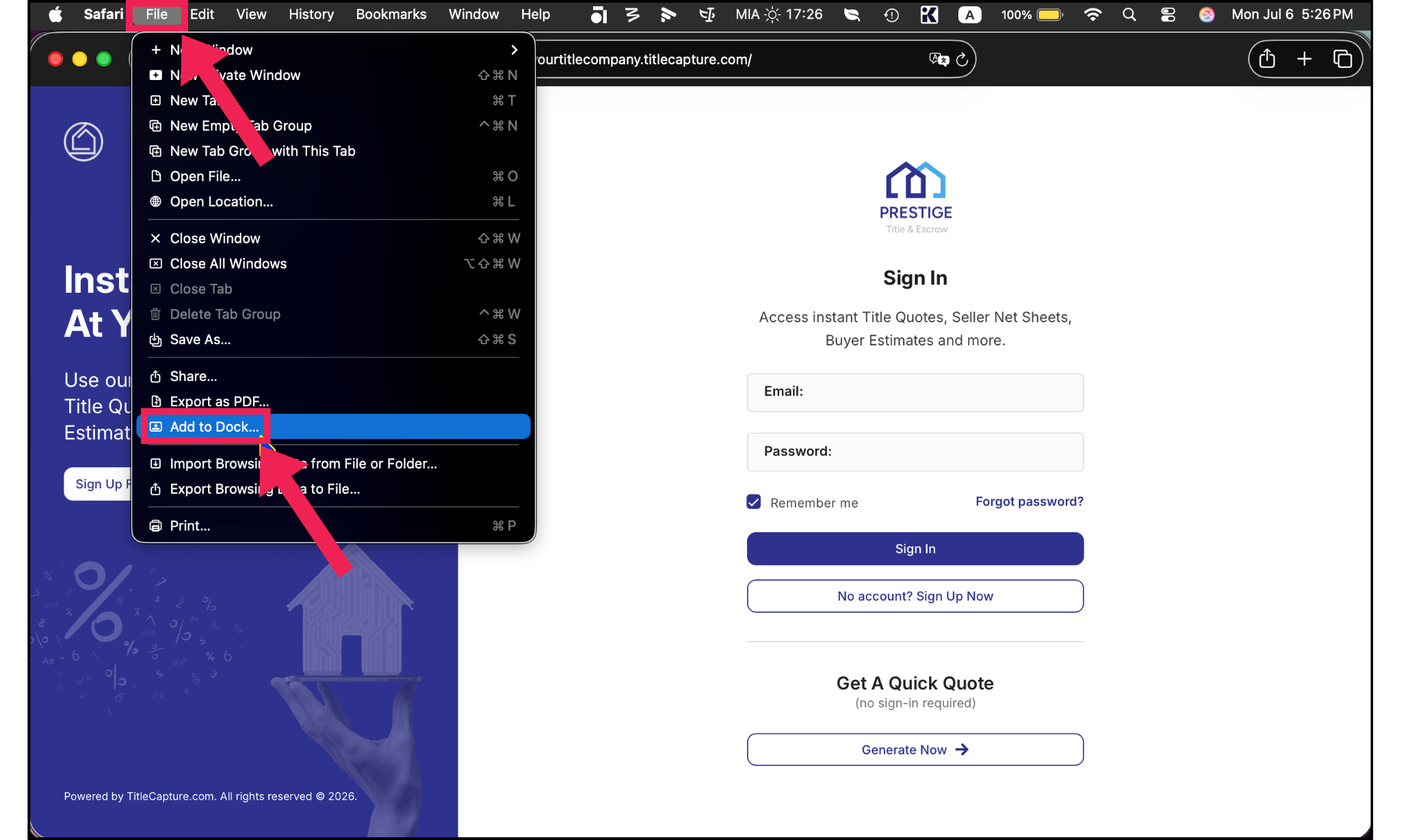
2. Either go to File in the menu bar 👇
or click the Share icon (the square with an arrow pointing up) next to the address bar. 👇
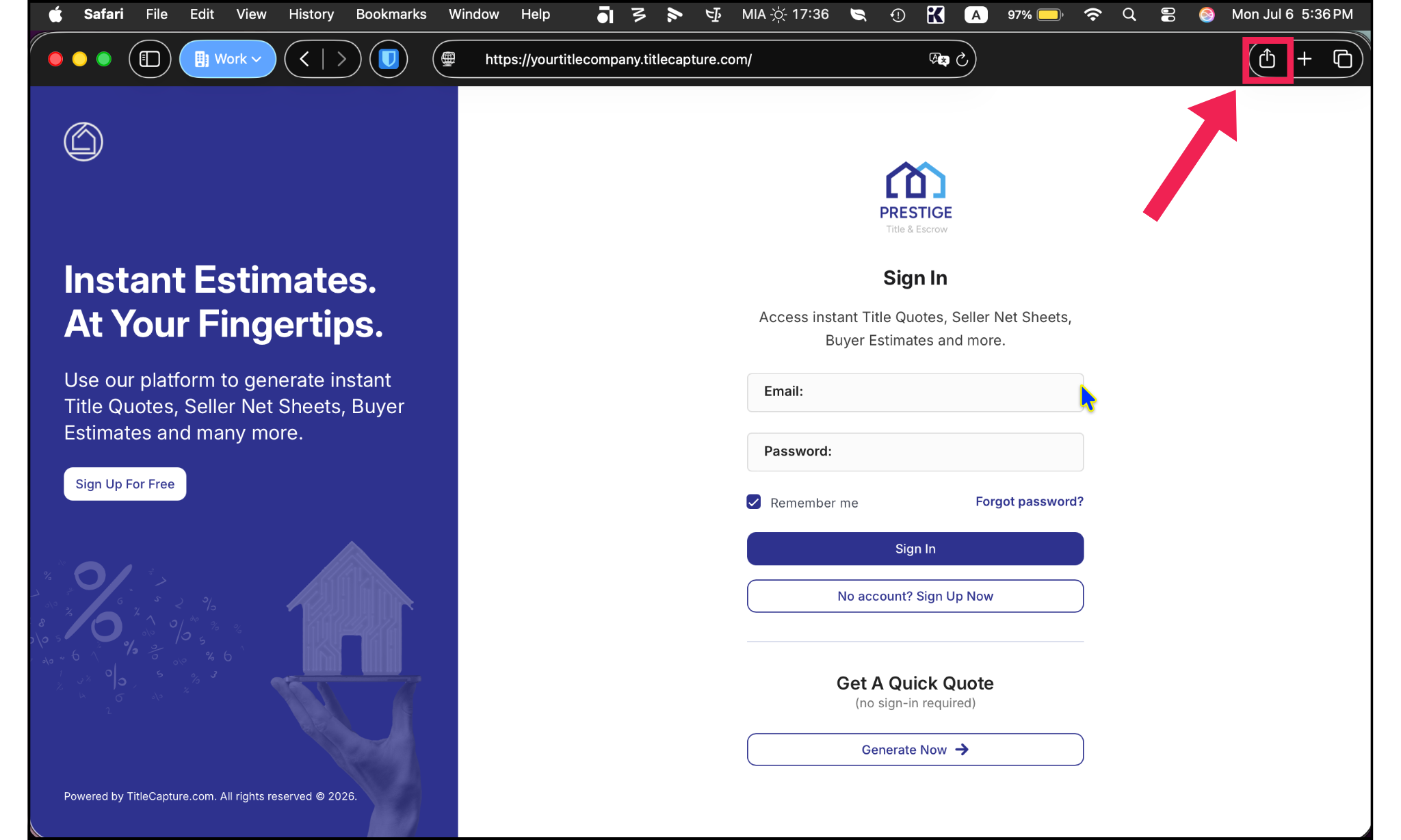
3. Click on Add to Dock.
4. Name your shortcut (optional) and tap Add. The shortcut will then appear on your home screen.
Chrome on macOS
1. Open Chrome and go to the website — for example, yourtitlecompany.titlecapture.com.
2. Click on the 1⃣ 3 dots to the right of the address bar, then go to 2⃣ Cast, Save and Share, and then pick 3⃣ Create Shortcut.
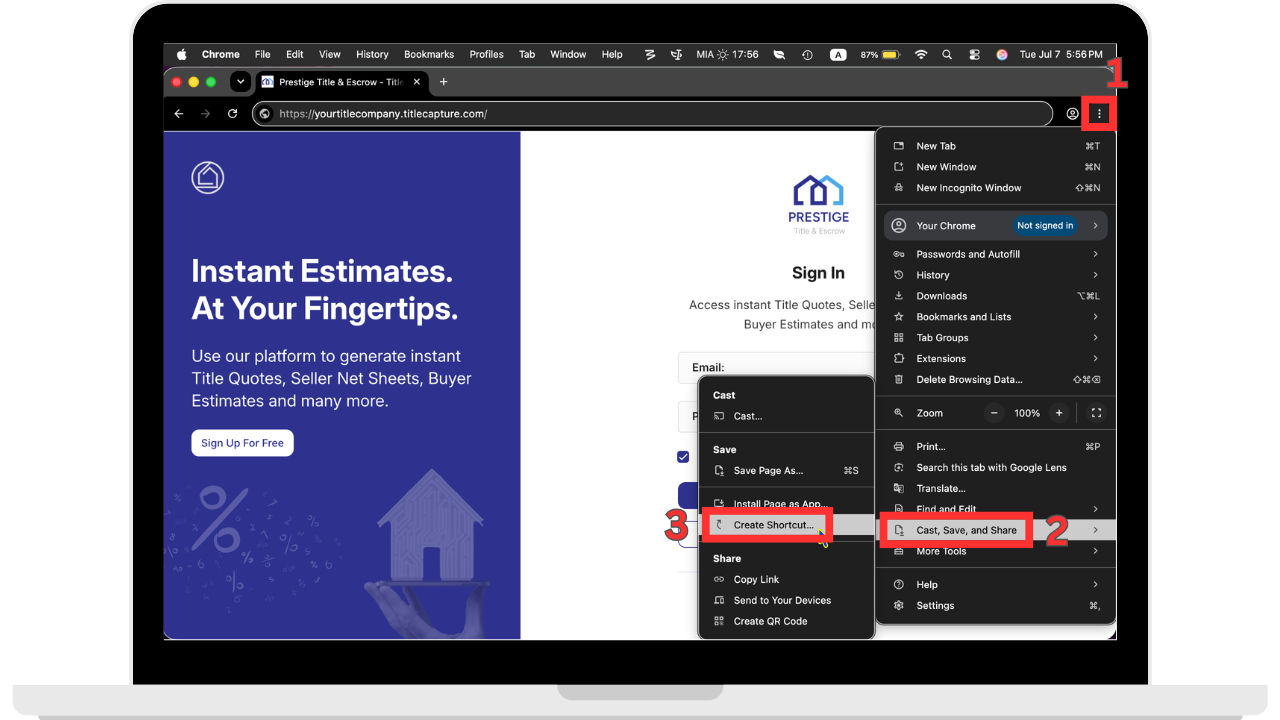
3. Name your shortcut (optional) and click on Create.
Why not an App Store app?
We get this question a lot — here’s why a home screen shortcut is the smarter choice:
Instant Access, No Downloads Skip the hassle of searching, downloading, and installing. Just add the shortcut and you’re ready to go.
Always Up to Date Native apps require periodic updates. With web access, you’re automatically on the latest version every time you open it.
Live, Accurate Data TitleCapture updates in real time, so your rates, fees, and calculations are always current—no waiting for syncs or patches.
With TitleCapture’s home screen shortcut, you’re literally one tap away from getting estimates done—fast, simple, and accurate. 😃👍
Need Help? Our friendly support team is just a message away. If you have questions or run into any issues, email us anytime at [email protected].