1. Login to your TitleCapture account.
2. Your Estimate tools would have the Manually Adjust Title button which allows you to do three things for your clients on an individual quote/estimate: (Please note that the fees would revert back to the original fees after the manual adjustment and if a permanent fee change is required, please reach out to your Admin or email us at [email protected])
Manually Adjust an Existing Fee (Any of the Settlement/Title Fees your Company submitted to TitleCapture)
Add a Custom Fee (fee going towards the buyer or the seller depending on the estimate tool being used ex. Sewage Fees, Inspections etc.)
Add a Custom Credit (credit going towards the buyer or the seller depending on the estimate tool being used)
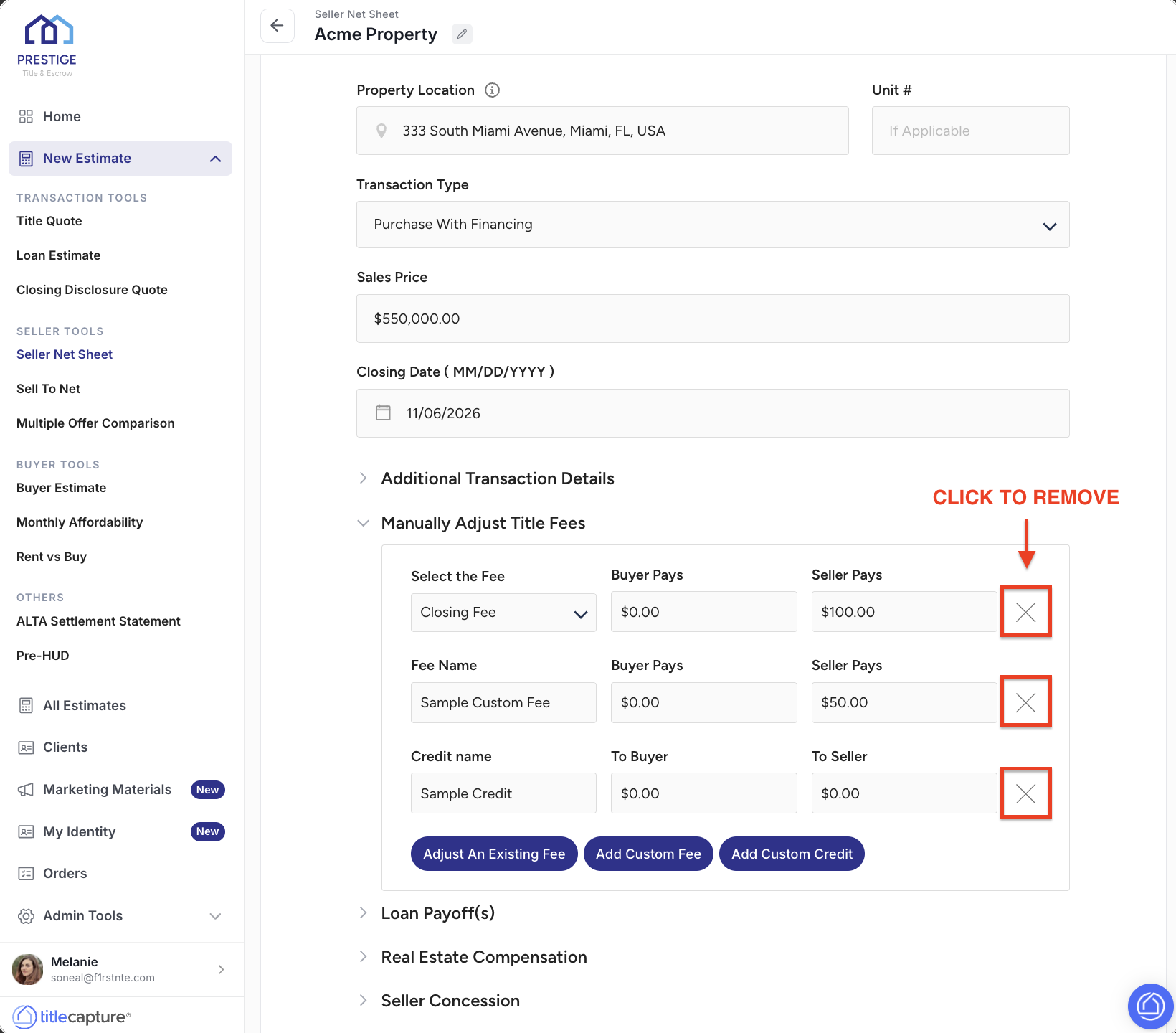
3. Manually Adjust an Existing Fee(Any of the Settlement/Title Fees your Company submitted to TitleCapture)
You can adjust any of the Settlement or Title Fees you submitted for a specific quote or estimate you will do for your clients using the manually adjust title fees field.
Just click on "Adjust an existing fee" button and click on the drop down under "Select the fee" to pick the Settlement/Title Fee
Click the "Adjust an existing fee" button as needed if you'd need to add additional fees to adjust
Select who's side is going to pay (whether buyer or seller) and indicate the adjusted amount.
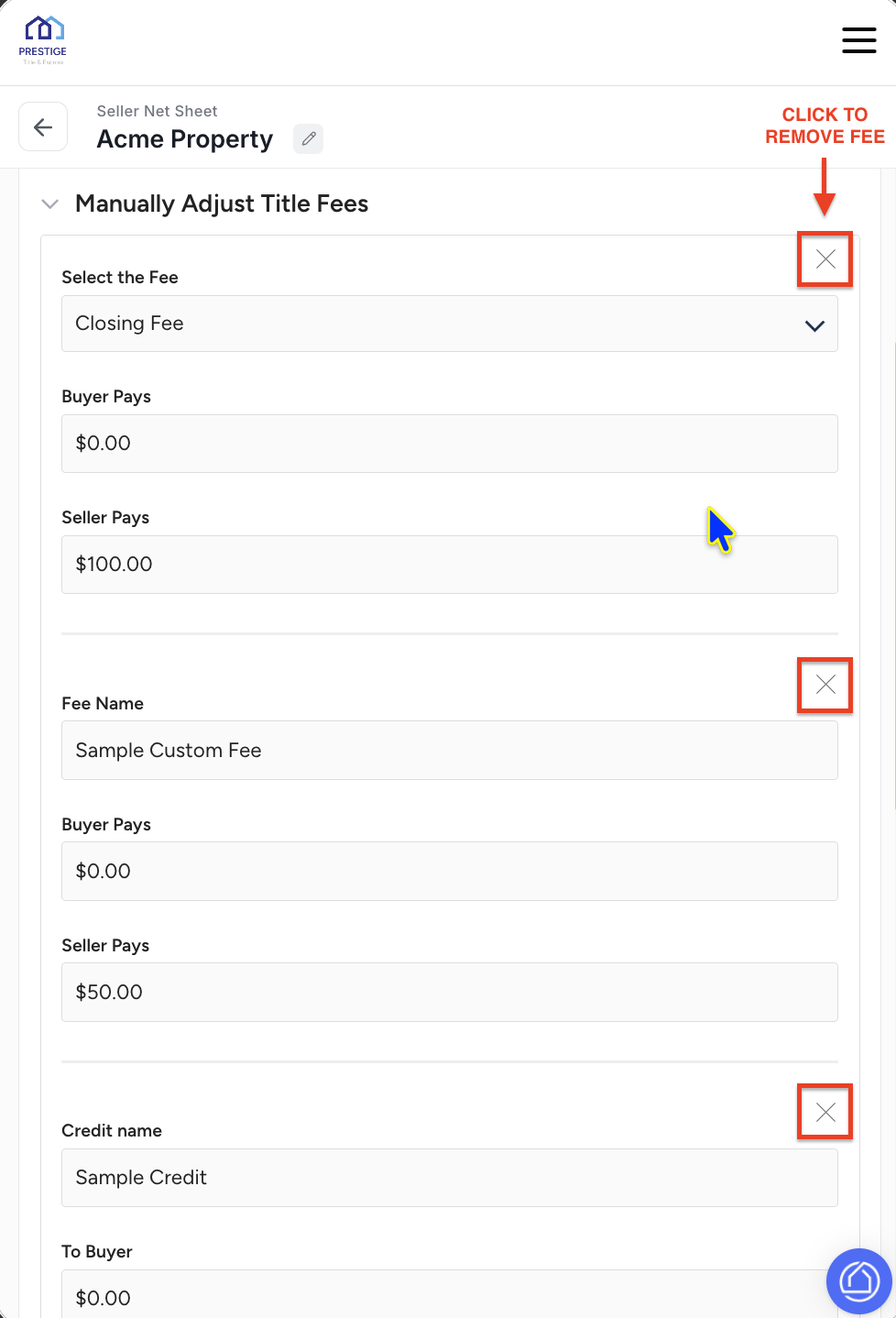
You will have a "Remove" button to help you remove those that are not needed or were accidentally added.
4. Add a Custom Fee (fee going towards the buyer or the seller depending on the estimate tool being used ex. Sewage Fees, Inspections etc.)
You can add any additional fees as needed.
Just click on "Add custom fee" button and click on the drop down under "Select the fee" to pick the Settlement/Title Fee
Click the "Add custom fee" button as needed if you'd need to add additional fees to adjust
Select who's side is going to pay (whether buyer or seller) and indicate the adjusted amount.
You will have a "Remove" button in Blue to help you remove those that are not needed or were accidentally selected.
5. Add a Custom Credit (credit going towards the buyer or the seller depending on the estimate tool being used)
You can add any additional credits as needed.
Just click on "Add custom credits" button and click on the drop down under "Select the fee" to pick the Settlement/Title Fee
Click the "Add custom credits" button as needed if you'd need to add additional fees to adjust
Select who's side is going to pay (whether buyer or seller) and indicate the adjusted amount.
You will have a "Remove" button to help you remove those that are not needed or were accidentally added.
If you have any questions or need additional help, please reach out to us at [email protected]. We’re always happy to assist.
