Over time, Windows accumulates temporary files, system logs, and browser data. Clearing this cache can free up significant gigabytes of storage space, improve system performance, and fix software glitches.
Here are the most effective ways to clear the various caches on Windows.
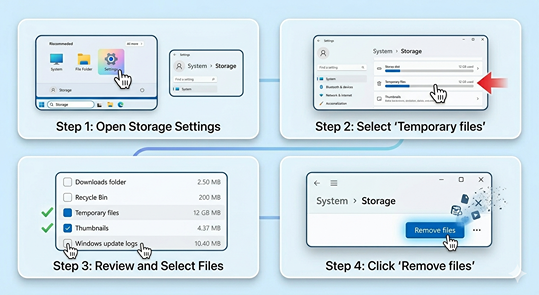
Windows has a built-in automated tool called Storage Sense that safely finds and deletes temporary system and app files.
Open the Start Menu and click the Settings gear icon (or press Win + I).
Go to System > Storage.
Click on Temporary files.
Windows will scan your drive. Check the boxes for the items you want to remove (such as Temporary files, Thumbnails, and Delivery Optimization Files).
Note: Be cautious with the Downloads folder checkbox—checking it will delete everything inside your personal Downloads folder.
Click Remove files at the top of the list.
Windows stores temporary application data in two specific directories. Clearing these manually can resolve stubborn app issues.
Press Win + R to open the Run dialog box.
Type %temp% and press Enter. This opens the user temporary folder.
Select everything in the folder (Ctrl + A) and press Delete.
If a prompt appears saying a file is in use, check "Do this for all current items" and click Skip. (This just means an app you are currently running is using that file).
Open the Run dialog box again (Win + R), type temp (without the percentage signs), and press Enter.
Delete the contents of this folder as well.
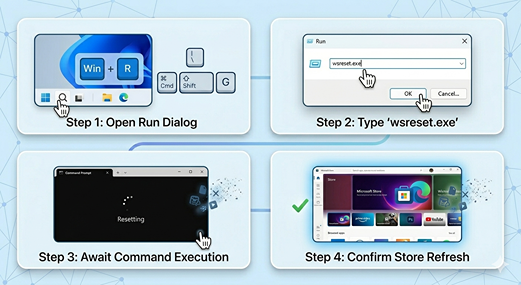
If you are having trouble downloading, installing, or updating apps from the Microsoft Store, clearing its specific cache usually fixes the issue.
Press Win + R to open the Run dialog box.
Type wsreset.exe and press Enter.
A blank Command Prompt window will pop up. Do not close it; it will close automatically after a few seconds once the cache is reset, and the Microsoft Store will launch on its own.
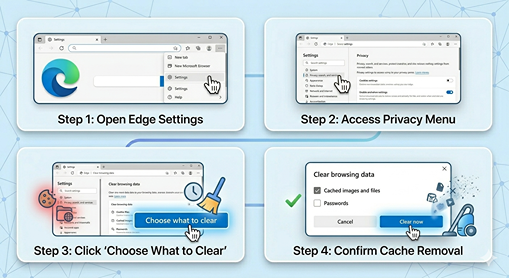
Web browsers on Windows store a massive amount of cached images and files. Here is how to clear them:
Open Edge and press Ctrl + Shift + Delete.
Set the Time Range to All time.
Check Cached images and files (uncheck History or Cookies if you want to keep them).
Click Clear now.
Open Chrome and press Ctrl + Shift + Delete.
Set the Time Range to All time.
Select Cached images and files.
Click Clear data.
Don't empty the Recycle Bin prematurely: If you manually delete files, they go to the Recycle Bin first. Keep them there for a day or two to ensure your applications run normally before permanently emptying it.
Skip "In Use" files: Never force-delete a file that Windows says is currently in use by another program. Doing so can crash active software.
For any questions, feel free to reach out to us at [email protected].
