Over time, your Mac stores temporary files known as cache. While these files are designed to help apps and websites load faster, a bloated cache can slow down your system, consume valuable disk space, or cause applications to misbehave.
This guide walks you through safely clearing your system, user, and browser caches.
The user cache holds data generated by the apps you run. Clearing it can resolve app glitches and free up significant storage.
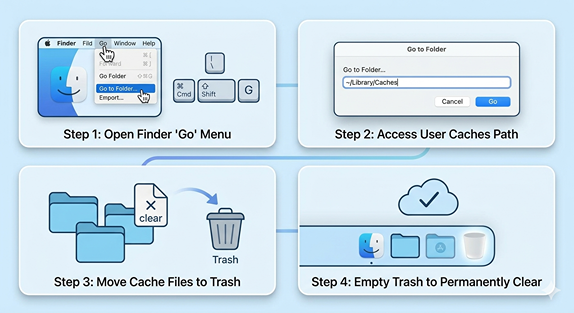
Open Finder.
Click Go in the top menu bar, then select Go to Folder... (or press Cmd + Shift + G).
Type or paste the following path exactly and hit Enter:
~/Library/Caches
You will see a list of folders belonging to various applications.
Select the files or folders you want to clear and move them to the Trash.
Note: It is safest to delete the contents of these folders rather than the folders themselves.
Empty your Trash to permanently clear the space.
System cache is created by the macOS operating system itself. You should generally leave this alone unless you are troubleshooting a specific, severe performance issue.
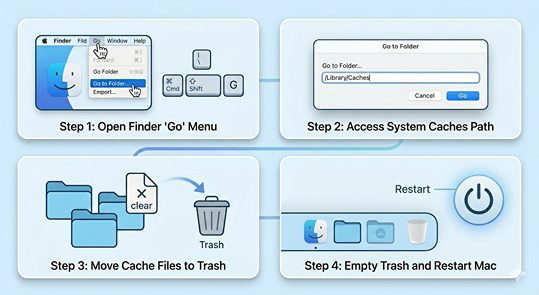
Open Finder and press Cmd + Shift + G.
Type or paste this path and hit Enter:
/Library/Caches (Note: This path does not have the ~ symbol).
Look for the files associated with the system or app causing issues and move them to the Trash.
Empty your Trash and restart your Mac immediately to allow the system to rebuild necessary files.
Web browsers cache images, scripts, and data from websites. Here is how to clear the cache for the most popular Mac browsers:
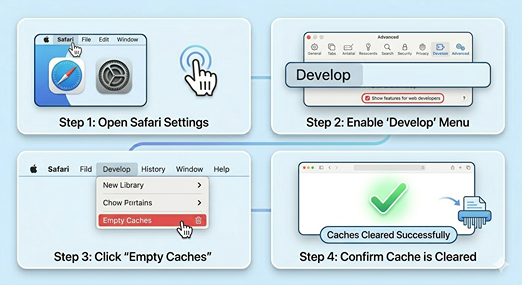
Open Safari and click Safari in the top menu bar, then select Settings (or Preferences on older macOS versions).
Go to the Advanced tab.
Check the box at the very bottom that says "Show features for web developers" (or "Show Develop menu in menu bar").
A new Developer option will appear in your top menu bar. Click it and select Empty Caches.
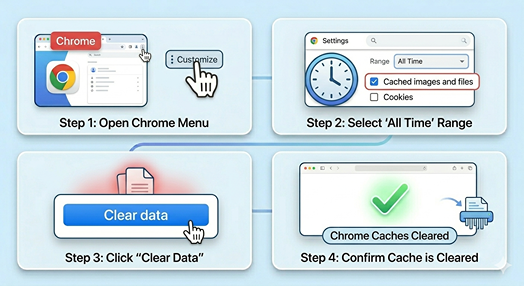
Open Chrome and press Cmd + Shift + Delete.
Set the Time Range to All time.
Check the box for Cached images and files (you can uncheck Cookies and History if you wish to keep them).
Click Clear data.
Don't delete blindly: If you aren't sure what an application folder in ~/Library/Caches belongs to, leave it alone or search its name online first.
Expect temporary slowdowns: Immediately after clearing your cache, certain apps or websites might load a bit slower the first time you open them. This is normal, as your Mac is recreating fresh, updated cache files.
For any questions, feel free to reach out to us at [email protected].
