JavaScript is a standard programming language that allows web pages to be interactive. If JavaScript is turned off, many modern websites (including online banking, streaming services, and social media platforms) will not load correctly, buttons might not work, and interactive elements will disappear.
Because JavaScript runs directly inside your web browser, enabling JavaScript on Windows means turning it on within the browsers you use. Here is how to enable JavaScript across the most popular browsers on Windows.
Open Chrome and click the three vertical dots in the top-right corner, then select Settings.
In the left-hand sidebar, click Privacy and security.
Click on Site Settings in the main window.
Scroll down to the Content section and click on JavaScript.
Select the radio button for Sites can use JavaScript.
Open Edge and click the three horizontal dots in the top-right corner, then select Settings.
In the left-hand sidebar, click on Cookies and site permissions.
Scroll down the main menu until you find the All permissions section and click on JavaScript.
Toggle the switch next to Allowed (recommended) to the On position.
By default, JavaScript is deeply integrated and fully enabled in Firefox. There is no simple checkbox in the standard settings menu to turn it off. However, if it was accidentally disabled through advanced settings, here is how to turn it back on:
Open Firefox, type about:config into the address bar, and press Enter.
A warning screen will appear. Click Accept the Risk and Continue.
In the search bar at the top of the page, type: javascript.enabled
Look at the column labeled Value. If it says false, double-click the row (or click the toggle button on the far right) to change it back to true.
Brave is built with privacy in mind and features built-in "Shields" that can sometimes block scripts.
Open Brave and click the three horizontal lines in the top-right corner, then select Settings.
Click on Shields in the left-hand menu.
Look for Block fingerprinting or Script blocking options and ensure they are set to standard or disabled if they are causing websites to break.
Alternatively, click the Brave Shield icon (the lion icon) directly inside your URL address bar on a specific website to disable script blocking just for that trusted site.
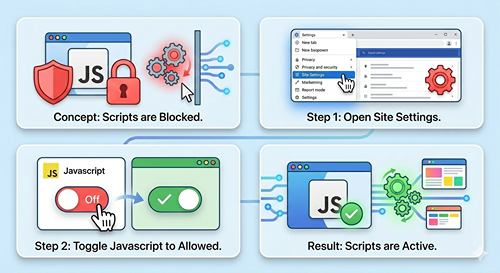
Once you have enabled JavaScript using the steps above, you can easily test it:
Refresh the page: Go back to the website that wasn't working and press F5 or click the reload button.
Use a testing tool: If you are still unsure, visit a free testing website like www.enable-javascript.com. The site will instantly detect your browser settings and tell you explicitly whether JavaScript is successfully running.
For any questions, feel free to reach out to us at [email protected].
