From the left-hand menu, click Logo & Colors.
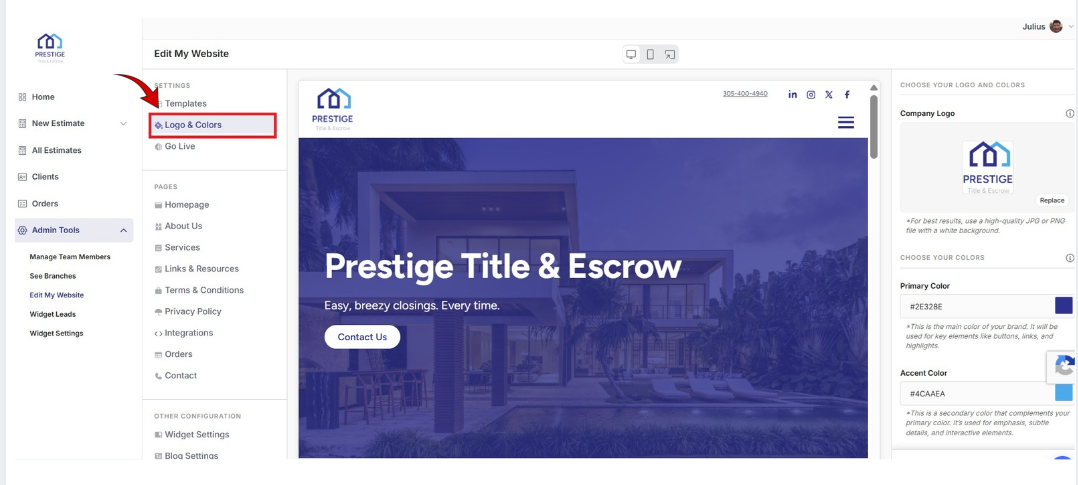
On the right-hand side of the screen, locate the Company Logo section and click Replace to upload your logo from your computer.
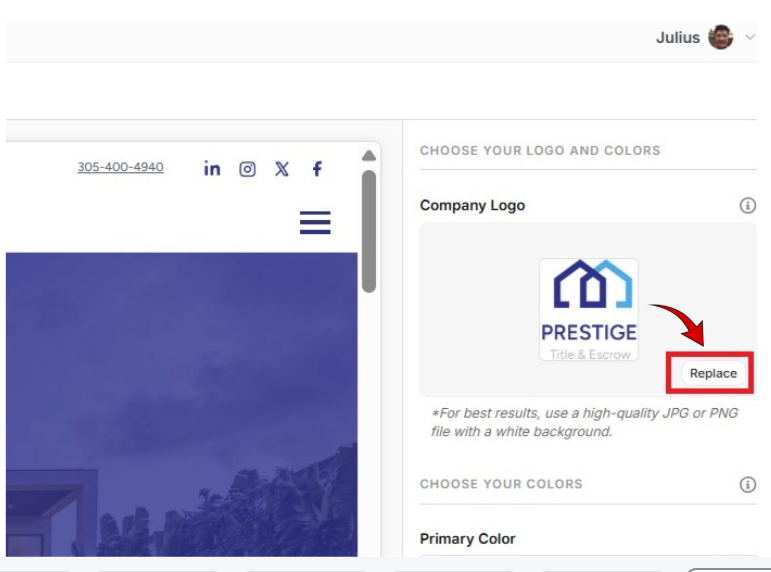
* For best results, use a high-quality JPG or PNG file with a white background.
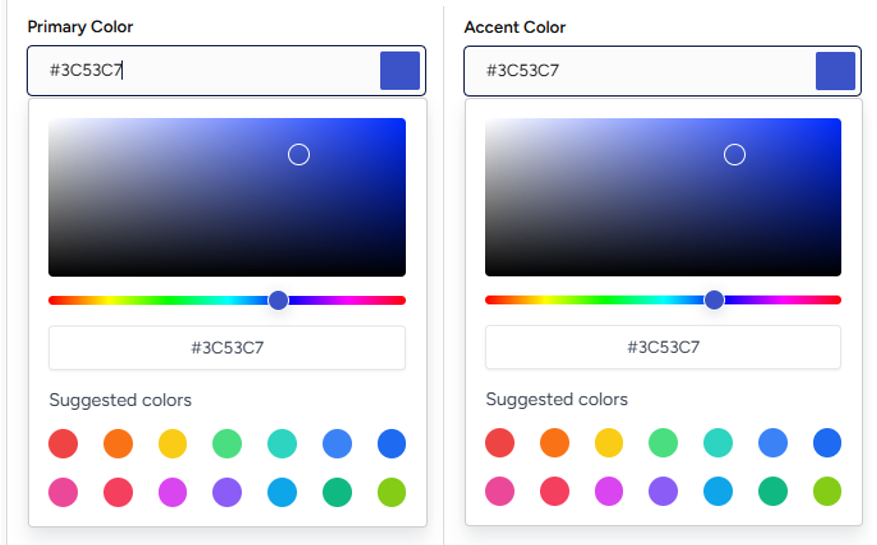
In the Choose Your Colors section on the right, select your Primary Color and Accent Color by entering color codes or using the color picker. *Primary Color is the main color of your brand. It will be used for key elements like buttons, links, and highlights. Accent Color is a secondary color that complements your primary color. It’s used for emphasis, subtle details, and interactive elements.
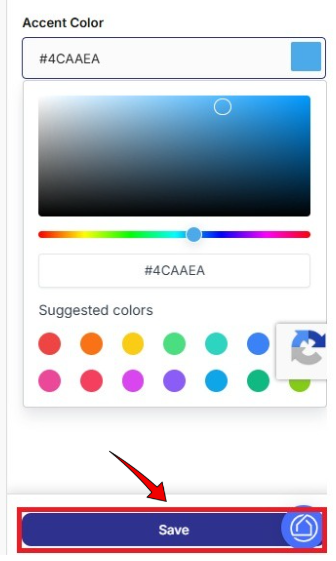
Click Save to apply your changes.
Review your updated logo and colors in the preview area in the center of the screen.
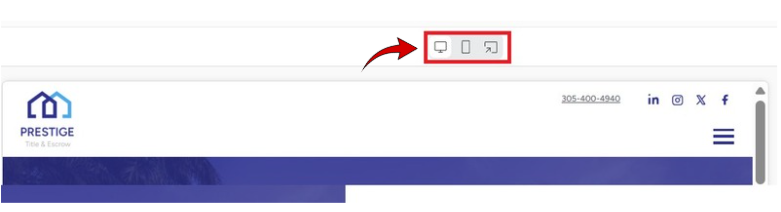
Switch between Desktop, Mobile, or Website views using the icons above the preview to confirm the page displays correctly on all devices.
If you’d like to make additional changes, repeat these steps until you’re satisfied with the results.
Edit My Website > Settings
Included articles on templates, logos and colors, and publishing your website.
Edit My Website > Pages
Contains step-by-step guides for editing each page of your site, including Homepage, About Us, Services, Links & Resources, Contact, and Legal pages.
Edit My Website > Other Configuration
Includes step-by-step guides for configuring website widgets and managing blog settings to enhance your site’s functionality.
If you have any questions or need additional help, please reach out to us at [email protected]. We’re always happy to assist.
