From the left-hand menu, under Pages, click Services.
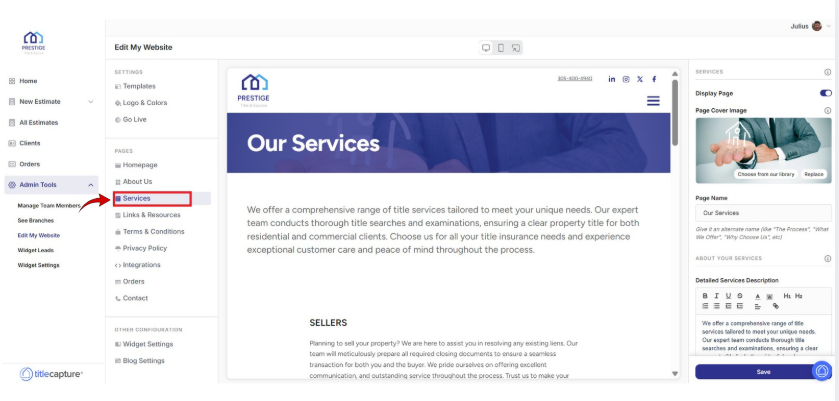
* A preview of the Services page is displayed in the center preview area.
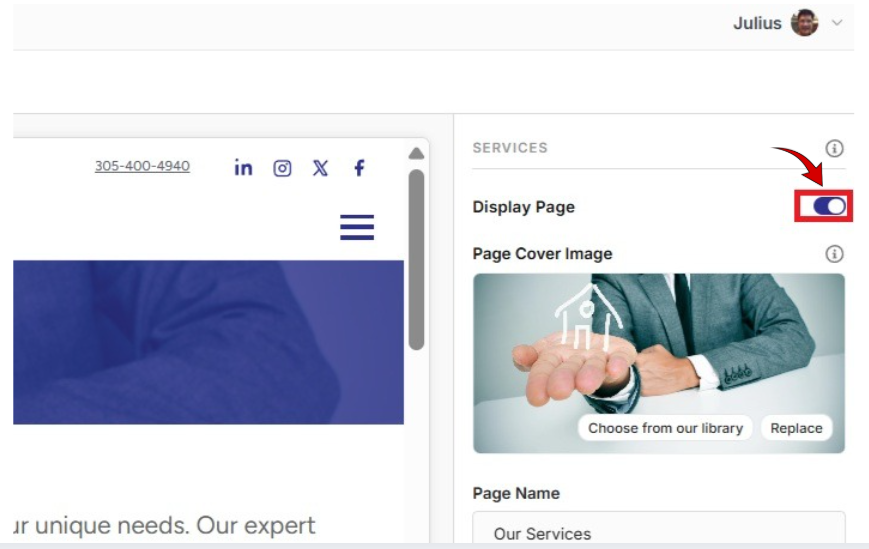
On the right-hand side of the screen, review the Display Page toggle and ensure it is enabled if you want this page visible on your website.
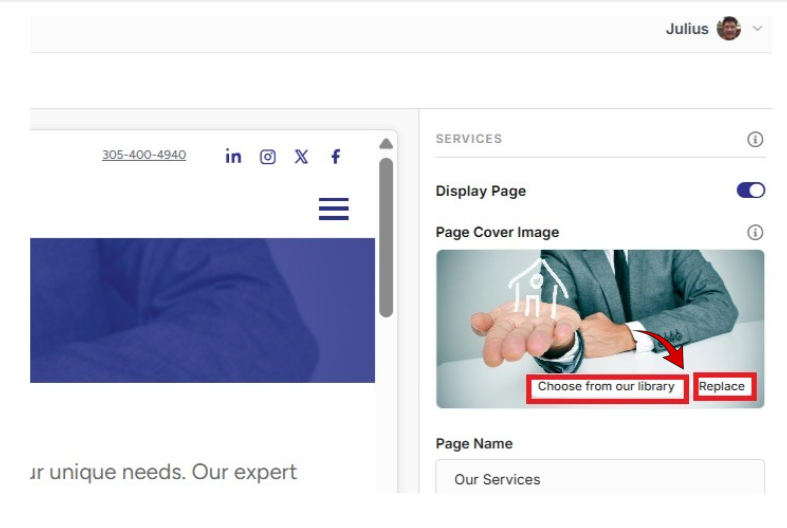
On the right-hand side of the screen, under Services, select a Page Cover Image from the image library (which contains images you’ve already uploaded, and any default images provided by the platform), or click Replace to upload a new cover image from your computer.
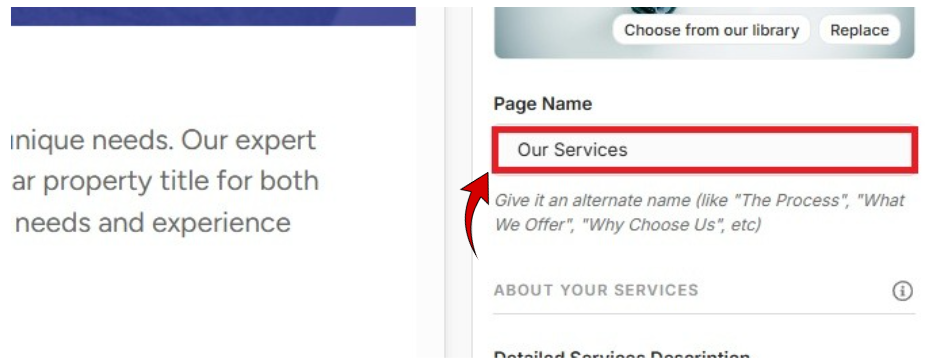
In the Page Name field, enter the title of the page. The text entered here will be displayed as the page title on the website. Give it an alternate name (like "The Process", "What We Offer", "Why Choose Us", etc)
In the About Your Services section, use the Detailed Services Description editor to update or to manage the list of pre-created services displayed on your website, if there are any. Each service appears as a clickable link. When you select a service inside the editor, you can:
Edit the service link or associated page
Remove the service from the list
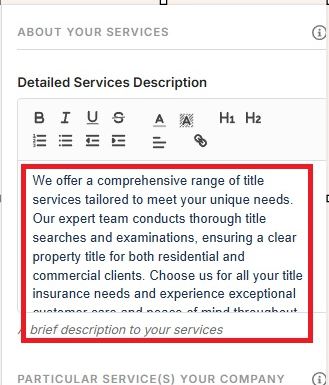
If you want to add a particular service your company offers:
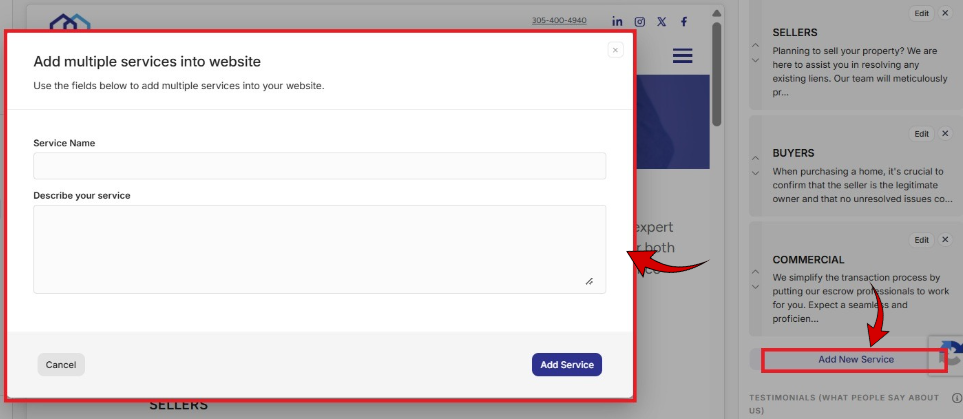
Navigate to the Particular Services Your Company Offers section and click Add New Service. This opens a form where you can enter the service details. Once saved, the service will appear on your Services page and be visible to visitors.
Add New Service Window - Use this window to add a custom service to your website by completing they following fields:
Service Name – Enter the name of the service as you want it displayed on your website.
Describe Your Service – Provide a brief description explaining the service and its benefits to clients.
Add Service – Saves the service and adds it to your Services page.
Cancel – Closes the window without saving any changes.
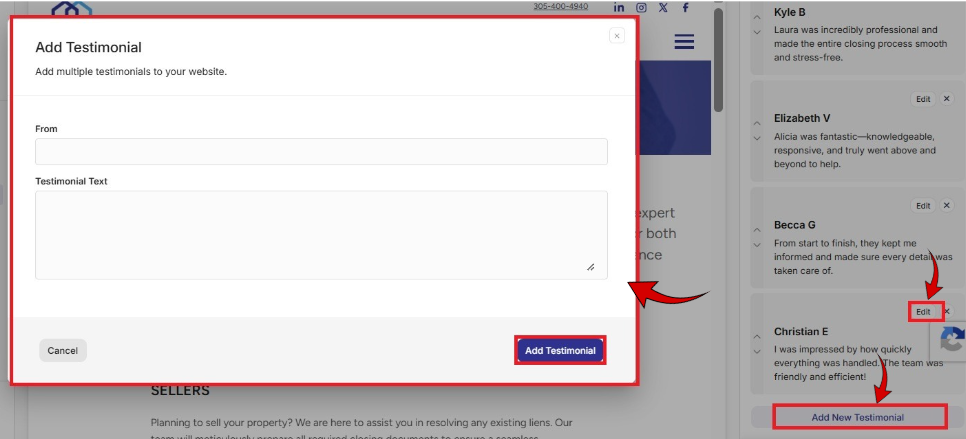
In the Testimonials (What People Say About Us) section, manage client testimonials:
Click Edit to update an existing testimonial.
Click Remove (X) to delete a testimonial.
Click Add New Testimonial to add a new client testimonial.
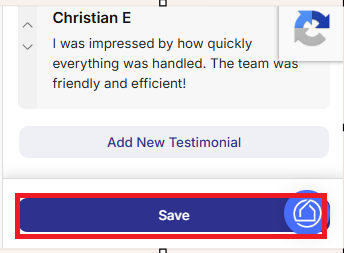
Finally, click Save at the bottom of the panel to apply your changes.
Review your updates in the center preview area.
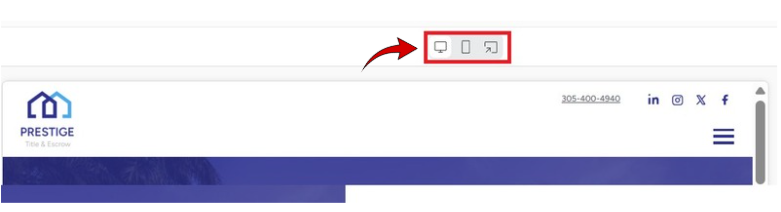
Switch between Desktop, Mobile, or Website views using the icons above the preview to confirm the page displays correctly on all devices.
If you’d like to make additional changes, repeat these steps until you’re satisfied with your Services page.
Edit My Website > Settings
Included articles on templates, logos and colors, and publishing your website.
Edit My Website > Pages
Contains step-by-step guides for editing each page of your site, including Homepage, About Us, Services, Links & Resources, Contact, and Legal pages.
Edit My Website > Other Configuration
Includes step-by-step guides for configuring website widgets and managing blog settings to enhance your site’s functionality.
If you have any questions or need additional help, please reach out to us at [email protected]. We’re always happy to assist.
