From the left-hand menu, under Pages, click Integrations.
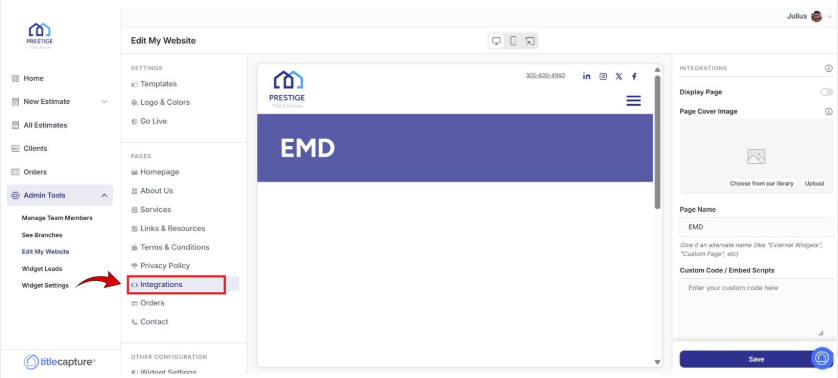
* A preview of the Services page is displayed in the center preview area.
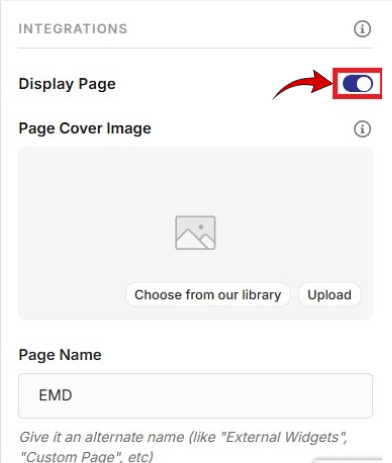
On the right-hand side of the screen, review the Display Page toggle and ensure it is enabled if you want this page visible on your website.
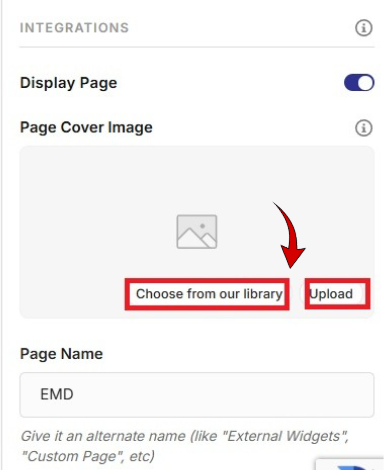
On the right-hand side of the screen, under Integrations select a Page Cover Image from the image library (which contains images you’ve already uploaded, and any default images provided by the platform), or click Upload to upload a new cover image from your computer.
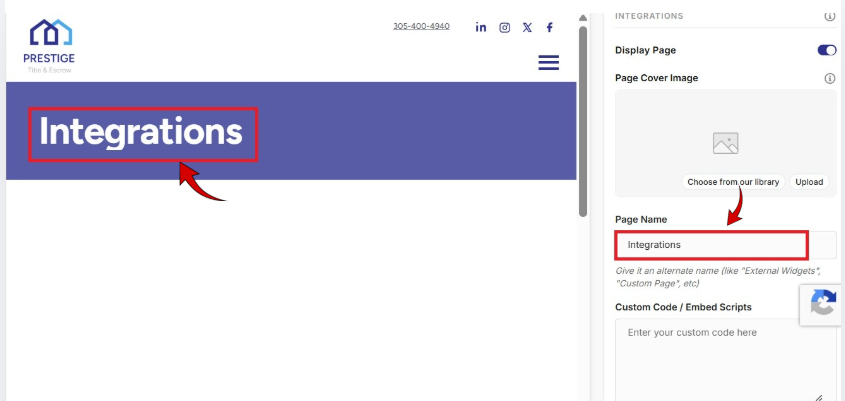
In the Page Name field, enter the title of the page. The text entered here will be displayed as the page title on the website. Give it an alternate name (like "External Widgets", "Custom Page", etc)
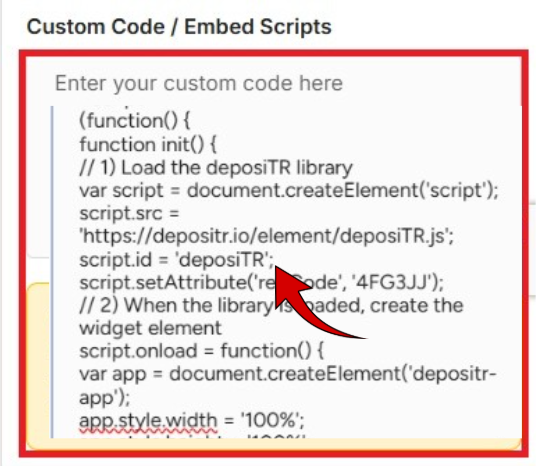
In the Custom Code / Embed Scripts field, paste any verified third-party embed code you want to add to the page, such as widgets, tracking scripts, or other integrations. Be careful when adding custom code. Malformed HTML or JavaScript can affect your website’s layout or functionality.
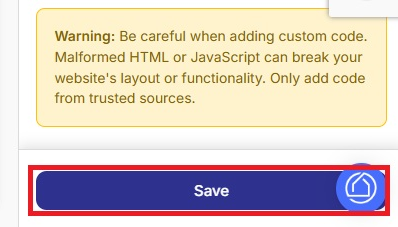
Finally, click Save at the bottom of the panel to apply your changes.
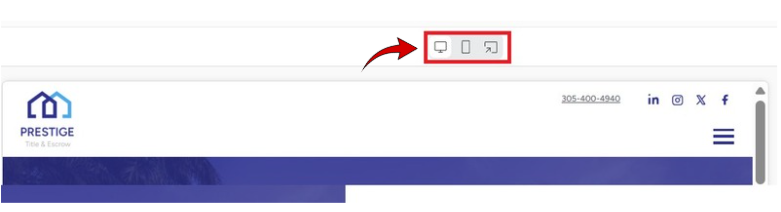
Switch between Desktop, Mobile, or Website views using the icons above the preview to confirm the page displays correctly on all devices.
Edit My Website > Settings
Included articles on templates, logos and colors, and publishing your website.
Edit My Website > Pages
Contains step-by-step guides for editing each page of your site, including Homepage, About Us, Services, Links & Resources, Contact, and Legal pages.
Edit My Website > Other Configuration
Includes step-by-step guides for configuring website widgets and managing blog settings to enhance your site’s functionality.
If you have any questions or need additional help, please reach out to us at [email protected]. We’re always happy to assist.
