After logging in to your TitleCapture account, start by clicking New Estimate from the dashboard to create a new calculation.
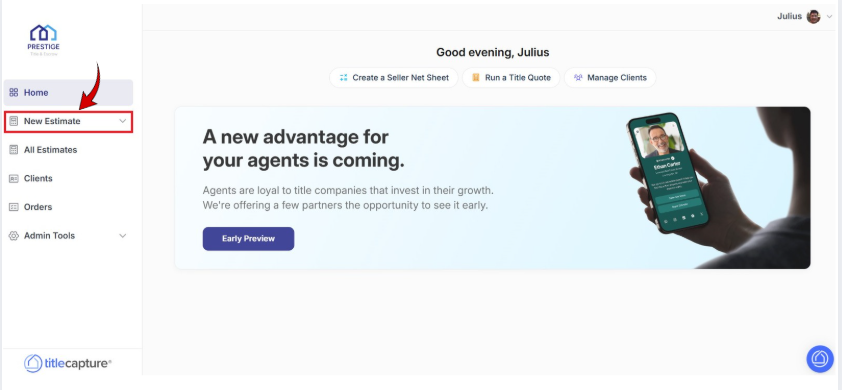
Choose Seller Net Sheet under the For Sellers section to generate an estimate of seller proceeds.
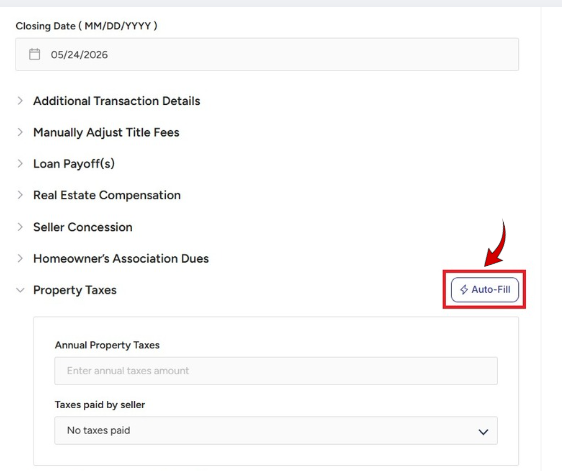
Note: The Property Tax Verification Auto-Fill feature is available across all Seller and Buyer tools.

Click on 'Property Location' and enter or search for the property's address.
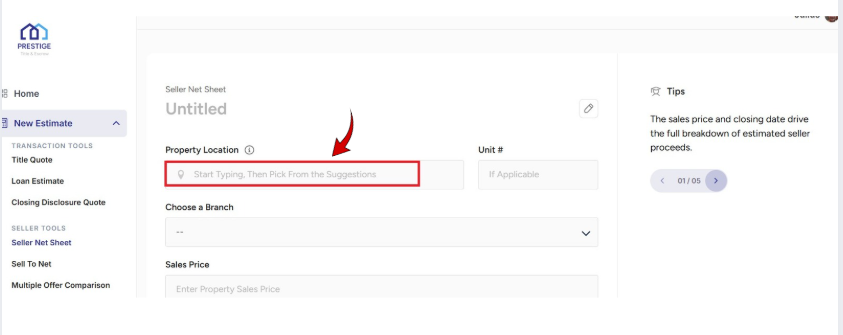
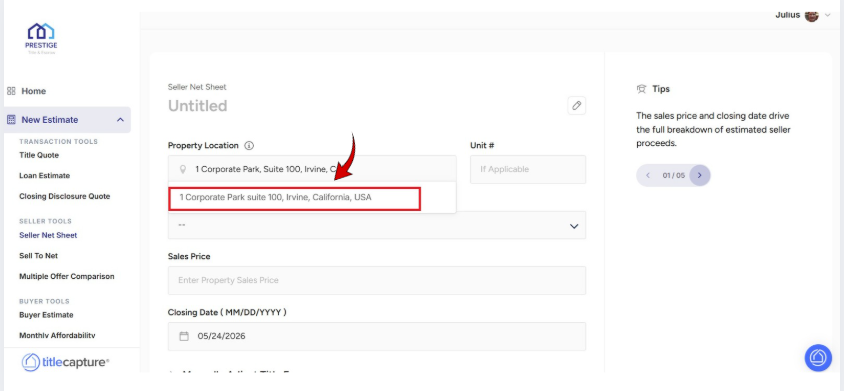
Choose the correct address from the suggestions to proceed quickly.
After entering all the other information, click on Auto-Fill for instant completion of key property details—no more tedious manual entry!
On this next screen, the address information is automatically carried over from the previous screen. Now click on 'Search' to look up the property address for accurate tax data.
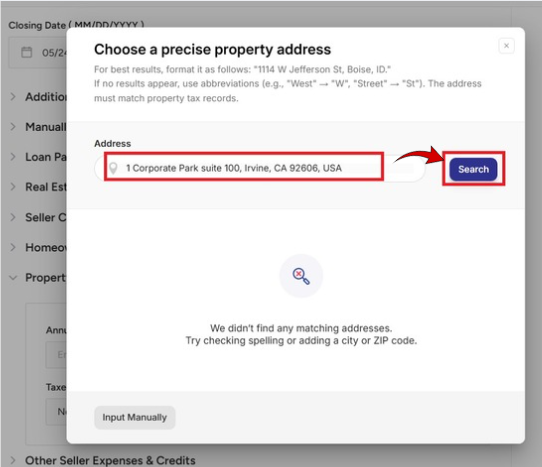
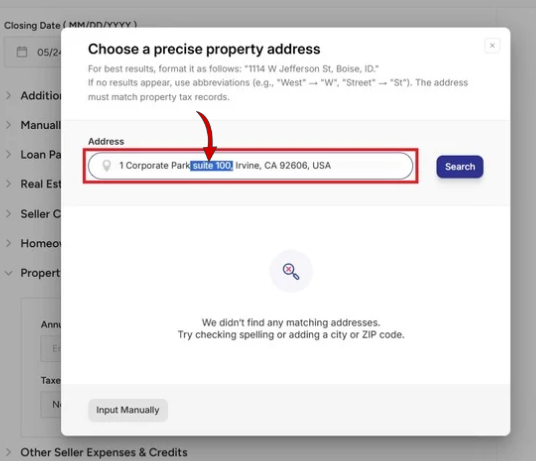
If no match is found, correct the property address. In some jurisdictions, tax records are indexed without suite or unit identifiers. Then click on “Search” once more.
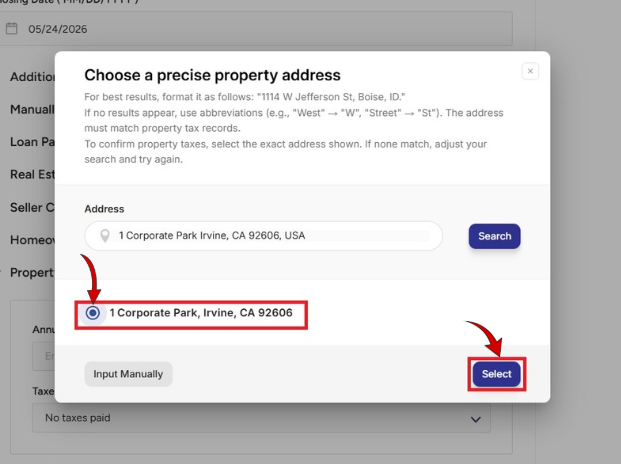
Choose the best match from the address list to confirm your choice then click 'Select' to accept the property address
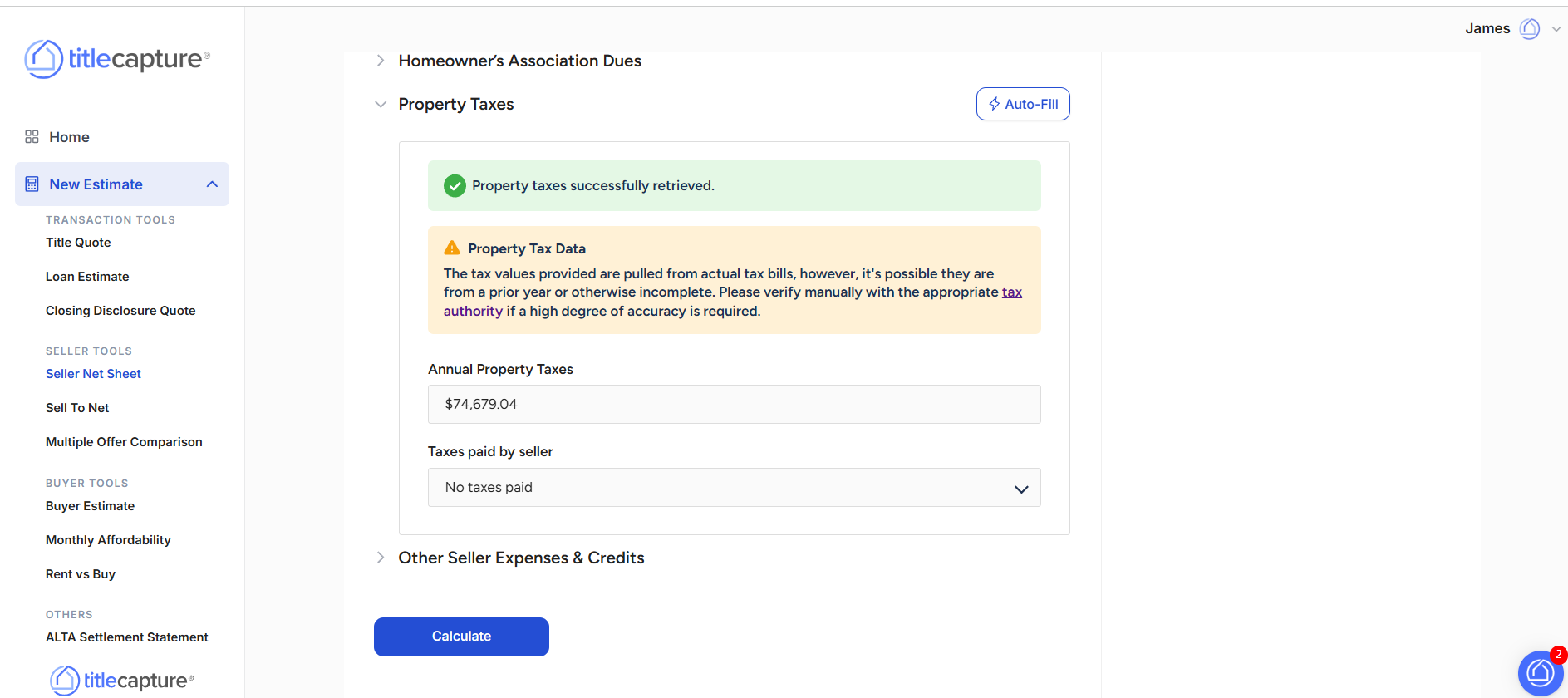
If the retrieval is successful, a confirmation message will appear indicating that property taxes were successfully retrieved. A notice will also display explaining that while the data comes from actual tax bills, it may reflect a prior year or require manual verification.
Edit My Website > Settings
Included articles on templates, logos and colors, and publishing your website.
Edit My Website > Pages
Contains step-by-step guides for editing each page of your site, including Homepage, About Us, Services, Links & Resources, Contact, and Legal pages.
Edit My Website > Other Configuration
Includes step-by-step guides for configuring website widgets and managing blog settings to enhance your site’s functionality.
If you have any questions or need additional help, please reach out to us at [email protected]. We’re always happy to assist.
