
🎥 Watch the Video Walkthrough
📖 Written Step-by-Step Guide
On the Admin Tools, click the “Manage Team Members” tab.
Click on the 3 dots button on the right side of a team member row then select “Deactivate team member” from the drop down.
Click on Branch Assignment.
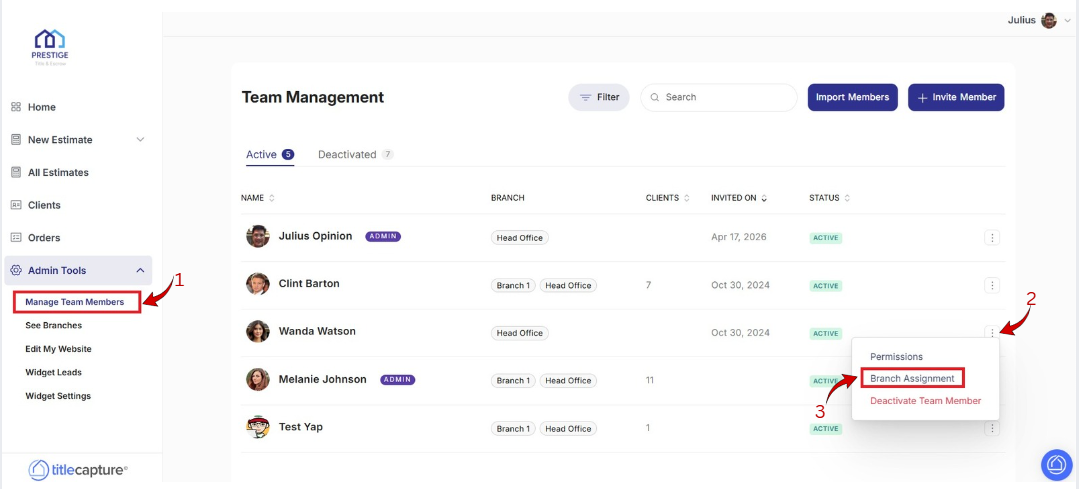
5. Click on the Branch Assignment Drop Down to select the applicable branch or office the team member should be assigned to.
Removing a Team Member/Title Rep from a Branch or Office
You can click on the small “x” beside the Branch name and just kindly reassign the clients (if any) to another team member/internal representative - scroll to the bottom of this guide to learn how to Reassign Clients to another Team Member.
If you need any further assistance please send us an email at [email protected]. We are more than happy to help!