Generating a Buyer Estimate
- Start a New Estimate:
Expand the "New Estimate" tab from the menu options at the top of the dashboard. A drop-down menu will appear with several options. From there, click the "Buyer Estimate" option under the "For Buyers" section. - Enter the Quote Details:
To modify the name, click the pencil icon in the top right corner of the "Buyer Estimate" form. Next, enter the property address, which can be either the complete street address or just the city and state. (Tip💡: This field is linked to Google Maps, so address suggestions will appear as you type).
 - Select a Branch (if applicable):
- Choose the Transaction Type:
Pick from one of the following options: Purchase with Financing or Cash - Enter the Sales Price:
Input the dollar amount of the property sale. - Set the Closing Date:
Select a date from the pop-up calendar. - Add Payoff Loans and 2nd Lien Payoffs (If applicable).
- Real Estate Compensation:
Use the dropdowns to input these amounts as either a percentage of the sales price or a fixed dollar amount. To indicate split compensation, simply enter the respective dollar amount or percentage that the Buyer is responsible for in the appropriate fields. Additionally, you can include compensation as a line item under “Flat Brokerage Fee”.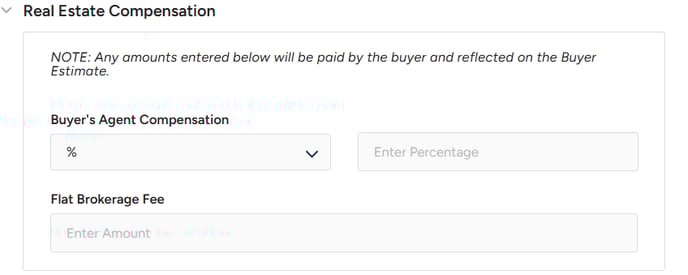
- HOA Fees (If applicable):
Enter the frequency and amount of HOA payments.Question: Did the seller pay the current month's dues?- If No, it will be added as an expense.
- If Yes, it will be credited to the seller.
- Property Taxes:
Enter either the annual property tax amount or tax rate. The system will auto-fill the other field based on your input.
Question: Has the seller paid this amount?
If No, it will be added as an expense.
If Yes, it will be credited to the seller. - Add Additional Expenses or Credits:
Enter any additional fees or credits for the seller. These are only applied to the current estimate. To remove an item, click the "X" next to it. - Calculate the Quote:
Once all fields are completed, click "Calculate" to view your quote results. For guidance on how to navigate the results page, please consult the TitleCapture Knowledge Base article titled "Modifying & Sharing Your Quote Results."
For any questions, feel free to reach out to us at support@titlecapture.com.
Related Articles
Generating a Seller Net Sheet
Start a New Estimate: Expand the "New Estimate" tab from the menu options at the top of the dashboard. A drop-down menu will appear with several options. From there, click the "Seller Net Sheet" option under the "For Sellers" section. Enter the Quote ...Generating, Saving, and Organizing Estimates
I. Viewing and Generating Estimates From your home dashboard, you can: Open a new estimate by selecting an option from the "New Estimate" dropdown in the header menu, or by clicking the blue "New Estimate" button on the "All Estimates" page. Access ...Getting Started with TitleCapture - for Real Estate Agents & Lenders
Welcome to TitleCapture! To help you get started, we have curated a selection of our most valuable resources for agents and lenders. We encourage you to explore the Knowledge Base articles listed below! Quick Start Guides to Get You Up and Running ...How to Access and Utilize Flyers in the TitleCapture App?
Seller Net Sheet Flyers Upon generating a Seller Net Sheet, click on the Flyers button to access three marketing flyers designed for sellers: There are three flyer options to choose from in this section: Why You May Want to Sell Your Home: Highlights ...Generating a Title Quote
Start a New Estimate Expand the "New Estimate" tab from the menu at the top of the dashboard. From the drop-down menu, click the "Title Quote" option under the "Quotes" section. Enter the Title Quote Details: o modify the name, click the pencil icon ...