Choose how you'd like to follow along:
2. Click on the "Clients" tab at the top left.
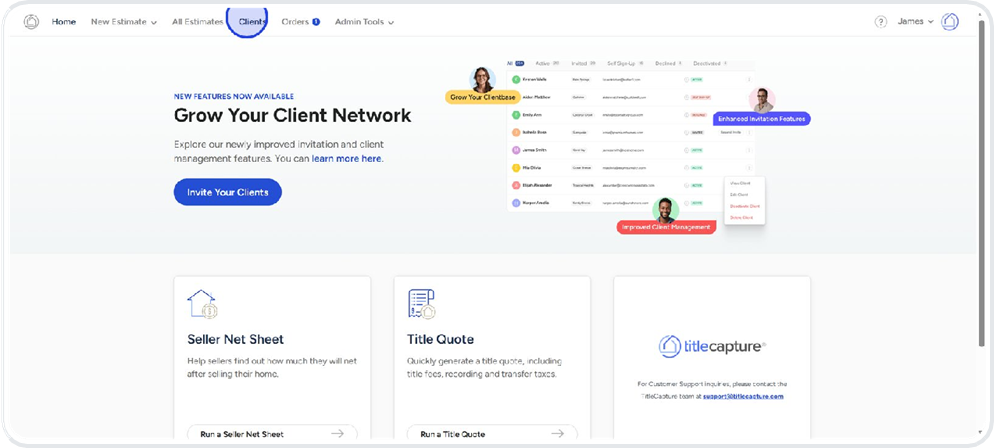
3. This will open the “Clients-All” page, where you’ll see a full list of your contacts.
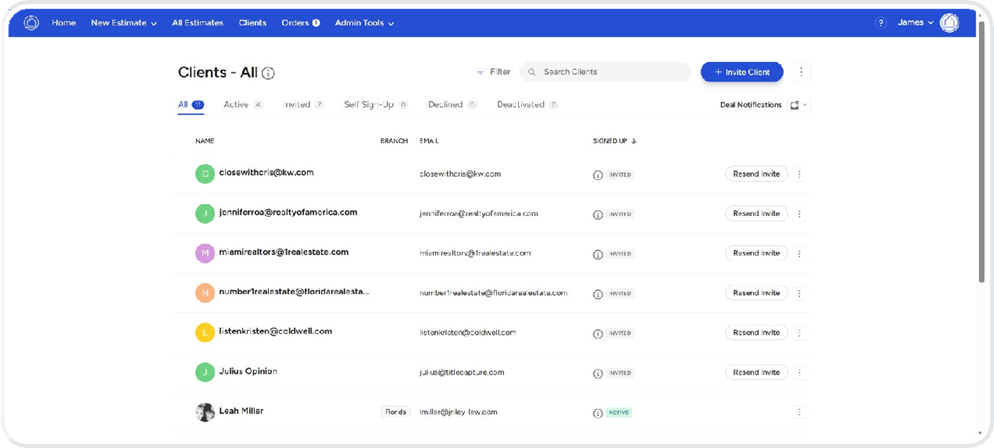
Click on the 3 vertical dots next to your client to access more options. Then choose “View Client”.
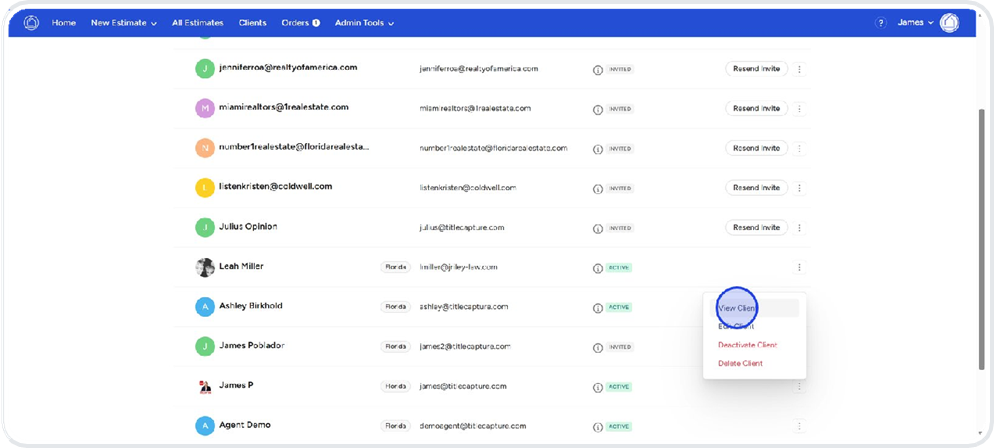
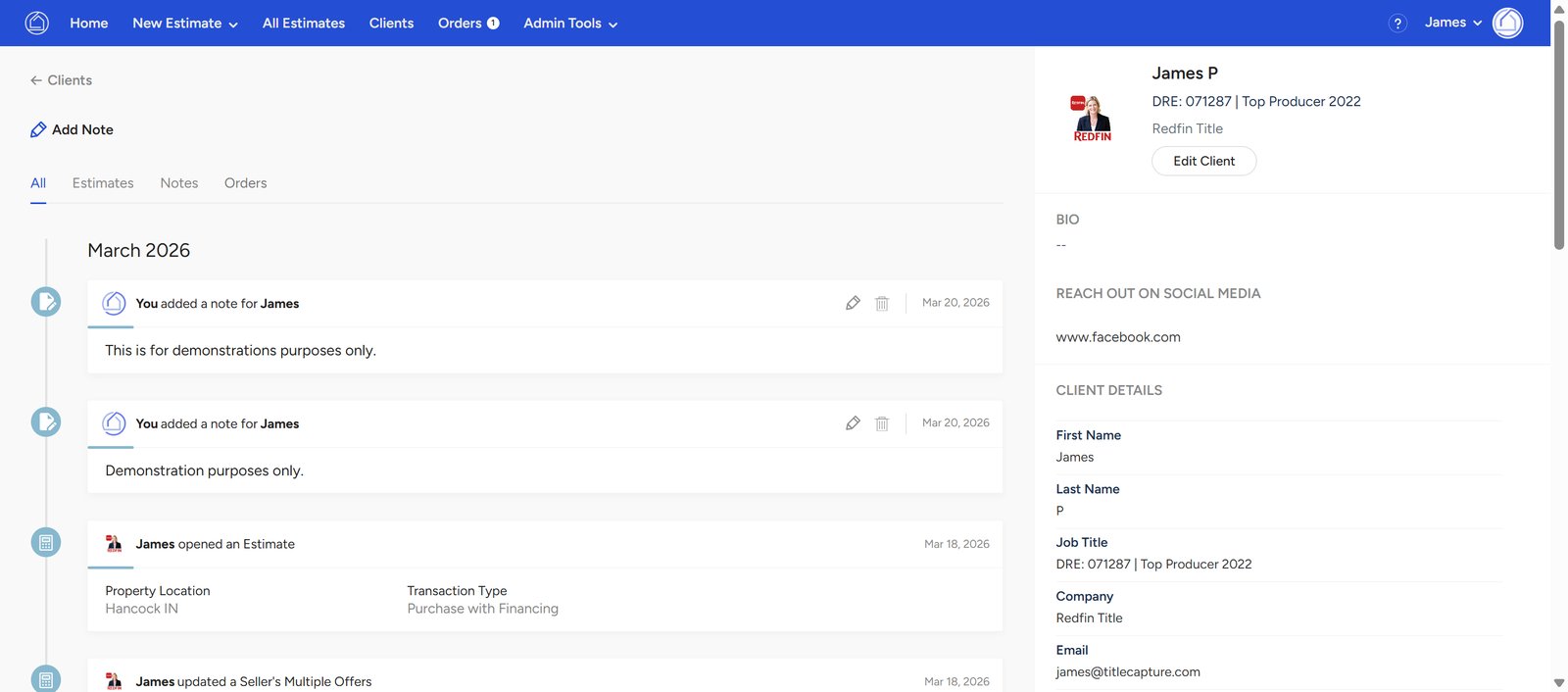
On this page displays the client’s detailed profile along with a real-time activity timeline.
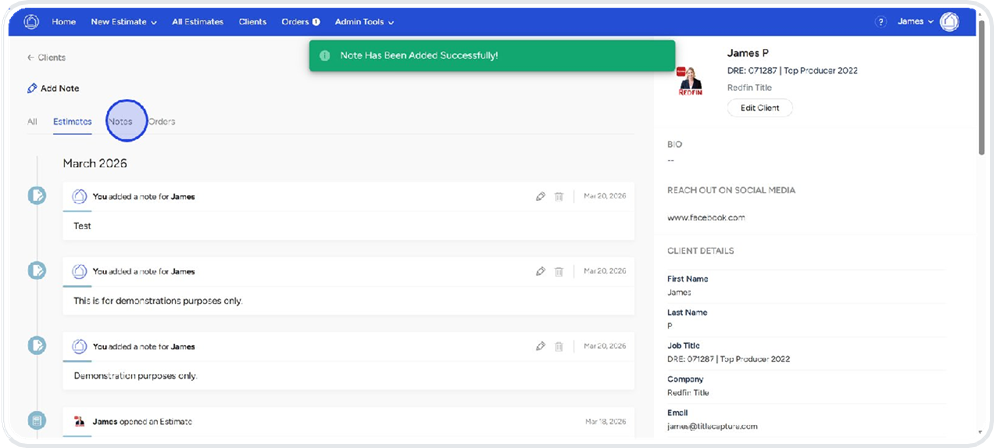
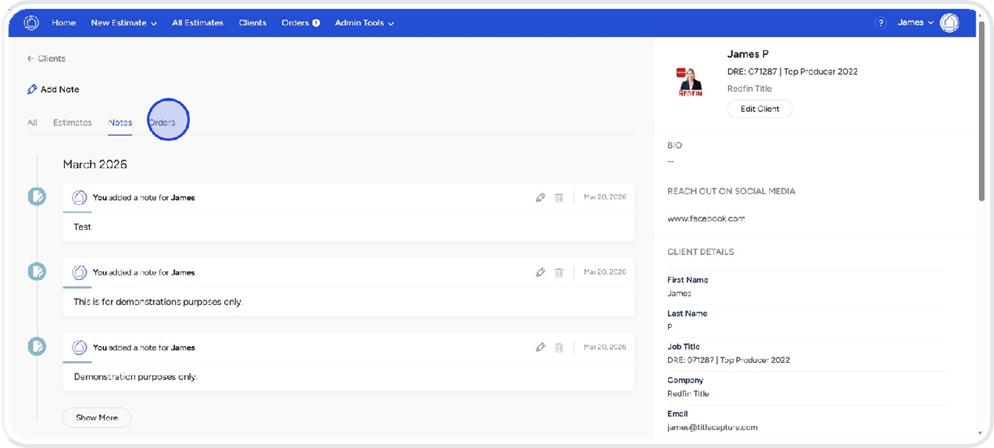
· At the top, you can switch between All, Estimates, Notes, and Orders to filter the client’s activity based on what you need to review.
· The All tab provides a complete timeline—combining estimates, notes, and orders into one unified view for a full picture of client activity.
Under the Estimates view, this section displays the clients activity timeline organized by date for easy tracking.
The Notes tab is where you can review, add and manage all client notes, including updates, conversations, and important reminders.
The Orders tab will give you access to all client transactions, making it easy to track requests, progress, and completed orders.
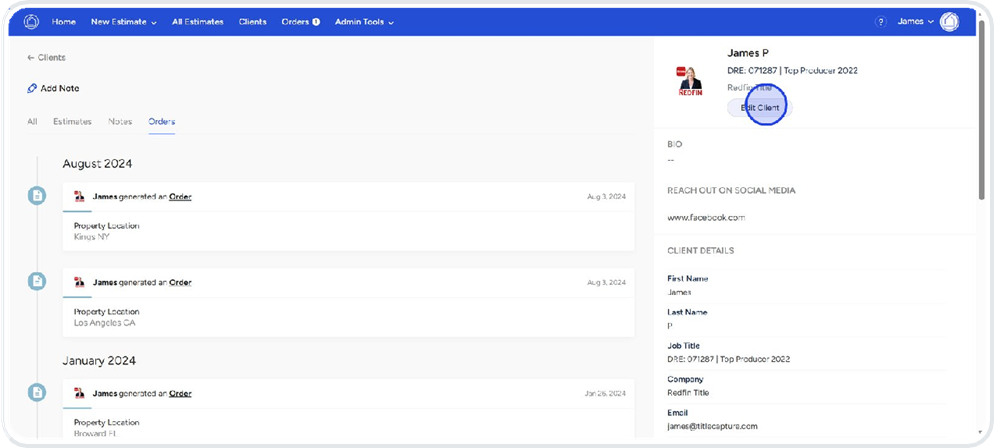
Finally, select Edit Client to upload and update contact details, ensuring client profiles remain accurate, complete, and up to date.
This page is the Update Client Details form, where you can edit and manage a client’s information.
It allows you to:
· Select the client’s role (e.g., buyer, seller, agent)
· Assign the appropriate branch and agency
· Update key profile details to ensure accurate records
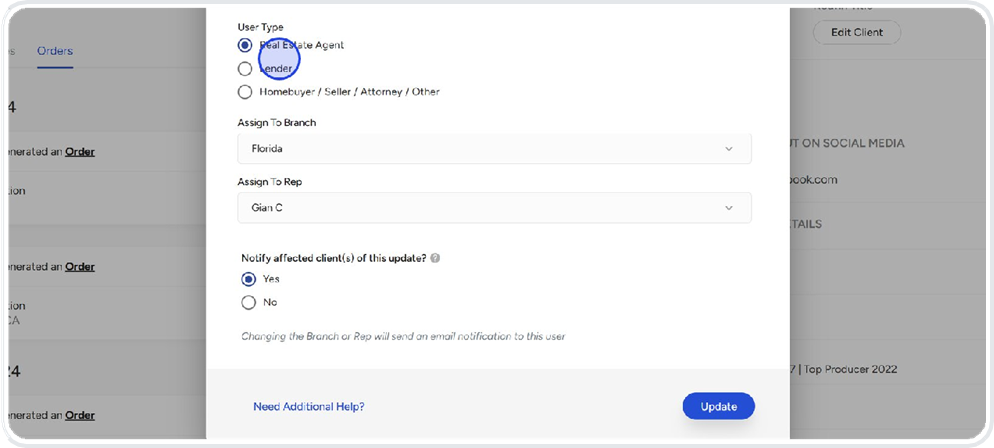
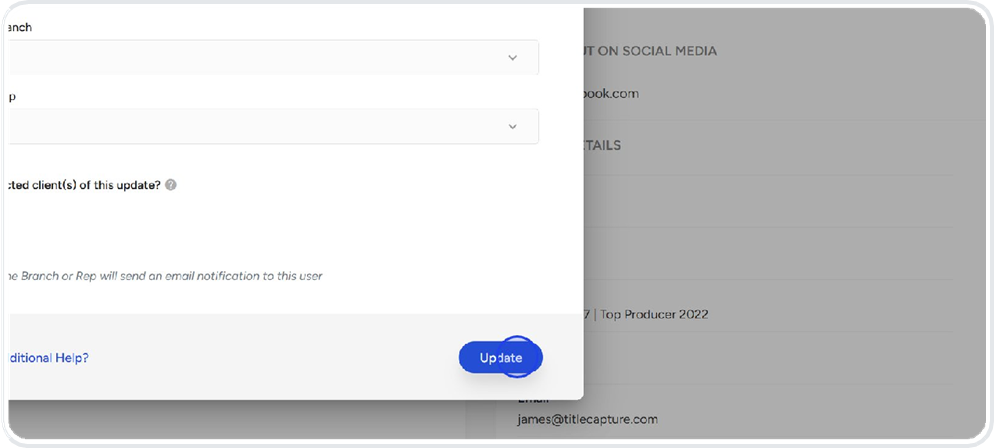
Once changes are made, click “Update” to save and apply the updated client information.
📄Organizing and Removing Clients
📄Enabling Threshold "Big Deal" Notifications
If you have any questions or need additional help, please reach out to us at [email protected]. We’re always happy to assist.
